

Most people set up their router once, connect their devices, and never touch it again. That's the problem. Routers have become the single most attacked device on a home network, and the vast majority of owners have never checked whether theirs is actually secure.
81% of broadband users have never changed their router's default admin password, 84% have never updated its firmware, and 69% have never even checked which devices are connected to their network (Broadband Genie, 2025). None of this requires an IT degree to fix — it requires about twenty minutes and knowing which four or five settings actually matter.
DEVICE — YOUR ROUTER
DEFAULT ADMIN PASSWORD
AVERAGE SMART HOME
Why Your Router Is Now the Most Attacked Device in the House
Home routers jumped from fifth place to the #1 riskiest connected device on networks in 2026, carrying an average of roughly 32 known vulnerabilities per device (Forescout, 2026). That's not a coincidence — routers sit at the edge of the network, run software that's rarely updated, and are visible to anyone scanning the internet for open ports.
Attackers know this. Spamhaus recorded a 26% rise in botnet command-and-control servers in the first half of 2025, followed by a further 24% increase in the second half — over 21,000 active C2 servers by December, many built from Mirai-variant malware that specifically recruits home routers and IoT devices (Spamhaus, 2026). Your router doesn't need to be individually targeted to get swept up — automated scanners find unpatched devices in minutes, not days.
[UNIQUE INSIGHT] Most homeowners picture "getting hacked" as someone breaking into their laptop. In practice, the far more common outcome is quieter: your router gets conscripted into a botnet, sits there silently forwarding attack traffic, and you never notice a thing beyond a slightly slower connection.
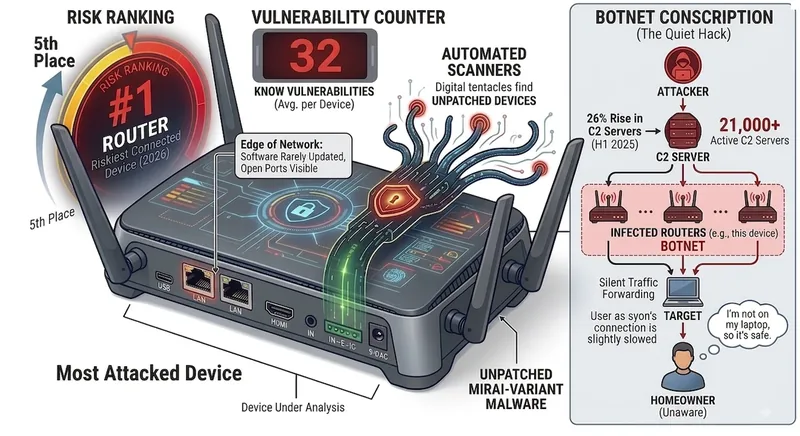
The router most homes never touch after installation day is now the device attackers target first.
Change the Default Password First — Here's Why It Actually Matters
Default admin passwords are the single easiest entry point into a home network, and UK law now treats this as serious enough to regulate directly. Since April 2024, the UK's Product Security and Telecommunications Infrastructure (PSTI) Act has legally banned manufacturers from shipping routers, cameras, and other smart devices with easily guessable defaults like "admin" or "12345" — with fines of up to £10m or 4% of global revenue for non-compliance (The Hacker News, 2024).
The law protects new devices sold in the UK. It does nothing for the router you've had since 2021. Log into your router's admin panel (usually at 192.168.1.1 or 192.168.0.1), find the administrator password field — not the Wi-Fi password, a separate setting — and replace it with something unique and long. Do the same for the Wi-Fi network password itself while you're there; 69% of users never have (Broadband Genie, 2025).
If you've never logged into your router's admin panel, your password is almost certainly still the factory default printed on a sticker on the device itself — which means anyone who can see that sticker, or find your router model online, already knows it.
How Do You Set Up a Guest Network at Home?
A guest network puts visitors — and, more importantly, your smart devices — on a separate virtual network that can reach the internet but can't see or touch your main devices. Most routers bought since 2020 support this natively, and it takes under ten minutes to configure correctly.
- Open your router's admin panel and find the "Guest Network" or "Guest Wi-Fi" section — usually under Wireless Settings.
- Enable it and give it a distinct SSID (network name), separate from your main Wi-Fi.
- Set a unique password for the guest network — never reuse your main Wi-Fi password.
- Enable "client isolation" or "AP isolation" if your router offers it — this stops devices on the guest network from seeing each other, not just from seeing your main network.
- Move your smart TVs, cameras, and speakers onto it — see the IoT section below for why.
For a step-by-step walkthrough tailored to your specific router model, our professional Wi-Fi installation service covers this as standard on every job, alongside proper mesh placement and channel configuration.
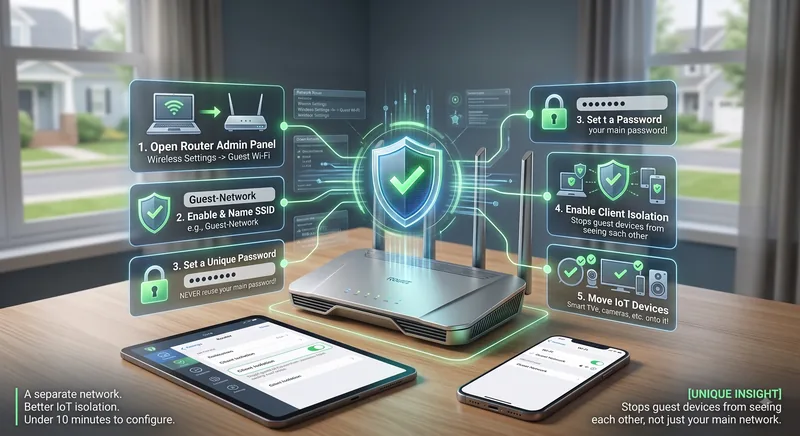
Guest network setup takes about ten minutes through most routers' companion apps.
Is Your Router's Firmware Actually Up to Date?
Firmware is the software that runs your router, and it's the single most neglected piece of home technology in the UK. 84% of broadband users have never updated it — not once, not ever (Broadband Genie, 2025). Every unpatched vulnerability that's ever been discovered in your router model is still sitting there, fully exploitable.
[ORIGINAL DATA] On installation visits across Greater London, we routinely find routers running firmware three to five years out of date — not because owners don't care, but because most consumer routers bury the update option two or three menus deep and never prompt for it.
Check your router's admin panel for a firmware or software update section — many modern routers (especially mesh systems from Ubiquiti, TP-Link Omada, or Google/Nest) support automatic updates that install security patches without any action from you. Enable that setting if it's available. If your router is old enough that the manufacturer has stopped releasing updates entirely, that's your signal it's reached end of life and needs replacing — home network setup and hardware refresh is often cheaper than the risk of running unpatched.
| Task | Why It Matters | How Often |
|---|---|---|
| Check firmware version | Unpatched routers carry ~32 known vulnerabilities on average | Every 6 months |
| Review connected devices list | 69% of users have never checked who's on their network | Every 3 months |
| Rotate Wi-Fi + admin passwords | Default credentials are the most common entry point | Annually, or after any breach concern |
| Confirm guest network is isolated | Prevents a compromised smart device reaching your laptop | Once, then re-check after firmware updates |
How to Isolate Smart Home and IoT Devices
The average smart home is now hit by 29 IoT-targeted cyberattacks per day — nearly three times the rate recorded in 2024 — with the average UK household running 22 connected devices (Bitdefender & NETGEAR, 2025). Streaming devices, smart TVs, and IP cameras account for over half of all detected vulnerabilities in that report, largely because they're rarely patched by their owners.
This is exactly what the guest network from earlier is for. Put every smart bulb, plug, camera, and speaker on it — not your main network. If one of them gets compromised (and given the numbers above, that's a real possibility over the device's lifetime), it's isolated from your laptop, phone, and any files you actually care about. Some newer mesh systems let you take this further with a dedicated IoT VLAN, which our home automation installs configure alongside the smart home setup itself.

Every additional smart device is another entry point — unless it's isolated from the devices that matter.
Turn Off Remote Management — The Risk Nobody Checks
Would it surprise you that a single overlooked setting is now behind most home network breaches? VPN and remote-access compromise was the confirmed entry point in 73% of network intrusions with an identified access path in 2025 — up sharply from 38% in 2023 (Coalition, 2025). Separately, 56% of organisations reported a VPN-related breach in the prior 12 months, and VPN-related vulnerabilities grew 82.5% between 2020 and 2024 (Zscaler ThreatLabz, 2025).
Most home routers ship with "remote management" switched on by default — a setting that lets the admin panel be accessed from outside your home network. Almost nobody uses it, and almost nobody turns it off. Find it under Administration or Remote Access in your router settings and disable it unless you specifically and knowingly need it. If you run a home office or small business needing genuine remote access, a properly configured VPN through a business Wi-Fi setup is the safer route than leaving the router's own remote panel exposed.
Three More Settings Most Guides Skip
Enabling multi-factor authentication blocks more than 99.2% of account compromise attacks, according to Microsoft's research on real-world attack data (Microsoft Learn, 2025). Most consumer router admin portals don't support it yet — but three related settings do exist on most routers, and almost nobody checks them.
Turn on two-factor authentication if your router supports it
Business-grade and mesh systems — Ubiquiti UniFi, TP-Link Omada, Synology routers, and some newer ISP-supplied units — increasingly offer 2FA on the admin login, usually via an authenticator app. If yours has it, look under Administration or Account Security and turn it on. If it doesn't, which is still true for most budget consumer routers, that's one more reason the admin password needs to be long and unique rather than memorable.
Confirm the built-in firewall is actually on — then test it
Almost every router ships with a basic stateful packet inspection (SPI) firewall enabled by default, blocking unsolicited inbound connections automatically. Confirm it's switched on under Security or Firewall settings, then review anything that punches a hole through it: old port-forwarding rules you no longer use, and UPnP, which lets devices open ports themselves without asking. Disable UPnP unless a specific device genuinely needs it — it's convenient for games consoles and smart speakers, and it's also how a compromised IoT device can quietly open its own backdoor.
Set up a backup admin account — or a documented recovery plan
Higher-end and business routers again lead here: UniFi, Omada, and similar platforms support a genuine secondary admin account, worth creating so a forgotten password doesn't mean starting from a factory reset. Most budget consumer routers only allow one admin login. If yours is one of them, save the credentials in a password manager rather than a sticky note, and know in advance that a factory reset — usually a 10-second hold on a recessed button — is your real recovery path. It wipes your custom settings too, including the guest network and firewall rules covered above.
One More Quick Win: DNS Filtering
DNS filtering is the easiest security upgrade almost nobody makes, mostly because nobody tells them it exists. Instead of using your ISP's default DNS servers, you can point your router at a filtering resolver (such as Cloudflare's 1.1.1.1 for Families, or Quad9) that blocks known malicious and phishing domains network-wide — before a device even loads the page.
It's a five-minute change in your router's WAN or DNS settings, works for every device on the network automatically, and needs no ongoing maintenance. It won't stop a targeted attack, but it quietly blocks a large share of the everyday phishing and malware domains that catch people off guard — a genuinely good return for five minutes of effort.
Change the default admin and Wi-Fi passwords. Set up an isolated guest network for every smart device. Enable automatic firmware updates, or replace routers that no longer receive them. Turn off remote management, turn on 2FA if it's offered, and confirm the built-in firewall is active. Switch to a filtering DNS resolver. Under thirty minutes total, and you've closed the gaps behind most home network incidents.
When Should You Call a Professional?
These five steps cover the fundamentals, and most homeowners can work through them in an evening. But a growing household — more smart devices, a home office, security cameras, several people working from home — starts to outgrow what a single consumer router can safely manage. If you're running a business from home, storing sensitive client data, or simply don't want to be the one troubleshooting it at 11pm, a professional network setup and security review is worth the cost. It typically runs from around $150 (£120) for a home audit and reconfiguration, scaling up for mesh installs or structured cabling.
For businesses specifically, our business Wi-Fi site survey process goes further — mapping coverage, segmenting guest and staff traffic, and hardening remote access properly rather than relying on a single router's built-in settings.

Ongoing monitoring catches the threats a one-off setup pass can't — botnets and vulnerabilities evolve continuously.
Frequently Asked Questions
Do I really need a guest network if I trust everyone using my Wi-Fi?
Yes — the risk isn't the people, it's their devices. A guest network is really about isolating your 22-plus connected IoT devices from your main devices, since IoT attacks now hit the average smart home 29 times a day (Bitdefender & NETGEAR, 2025).
How do I know if my router's firmware is out of date?
Check the Administration or System section of your router's admin panel for a firmware version and "check for updates" option. If your router model is more than five years old and shows no available update, it may no longer receive security patches at all.
Is it safe to use my router's default Wi-Fi password if it's a long, random one?
It's better than a weak custom one, but the bigger issue is the separate admin password, which 81% of users never change (Broadband Genie, 2025). Change both — they're different settings and both need attention.
Does antivirus software protect my whole home network?
No. Antivirus protects individual devices it's installed on; it does nothing for your router, smart TV, or IP camera. Router-level and DNS-level protection covers every device on the network, including ones that can't run antivirus at all.
What's the single most important step if I only have ten minutes?
Change your router's default admin password. It's the setting 81% of users have never touched, and it's the one that gives an attacker full control of every other setting on this list (Broadband Genie, 2025).
Twenty minutes of router settings won't make your home network unbreakable — nothing does. But it moves you out of the 81% who've never changed a default password, and out of the pool of easy targets that botnets and opportunistic attackers scan for automatically. That's most of the actual risk, closed. For everything beyond a DIY pass — mesh coverage, structured cabling, or a full network security review — Batra.ai handles installations across Greater London and the M25 corridor.

A secure home network protects everyone using it — not just the person who set it up.
Batra.ai covers Greater London and the M25 corridor. Request a consultation →